Get your receipts out of email
Bring in the receipts you already have once, then let new ones arrive on their own. Paidwhere reads every message and attachment on this computer.
Gmail
Mail you already have
About 10 minutes, once. Google Takeout downloads just your receipt emails as one ZIP.
- 1
Find your receipts in Gmail
Paste this into the Gmail search box and press Enter. Tick the box at the top, then click “Select all conversations that match this search”.
(category:purchases OR (has:attachment (invoice OR receipt OR 영수증 OR 청구서 OR 領収書))) -"test mode" -subject:test -sandbox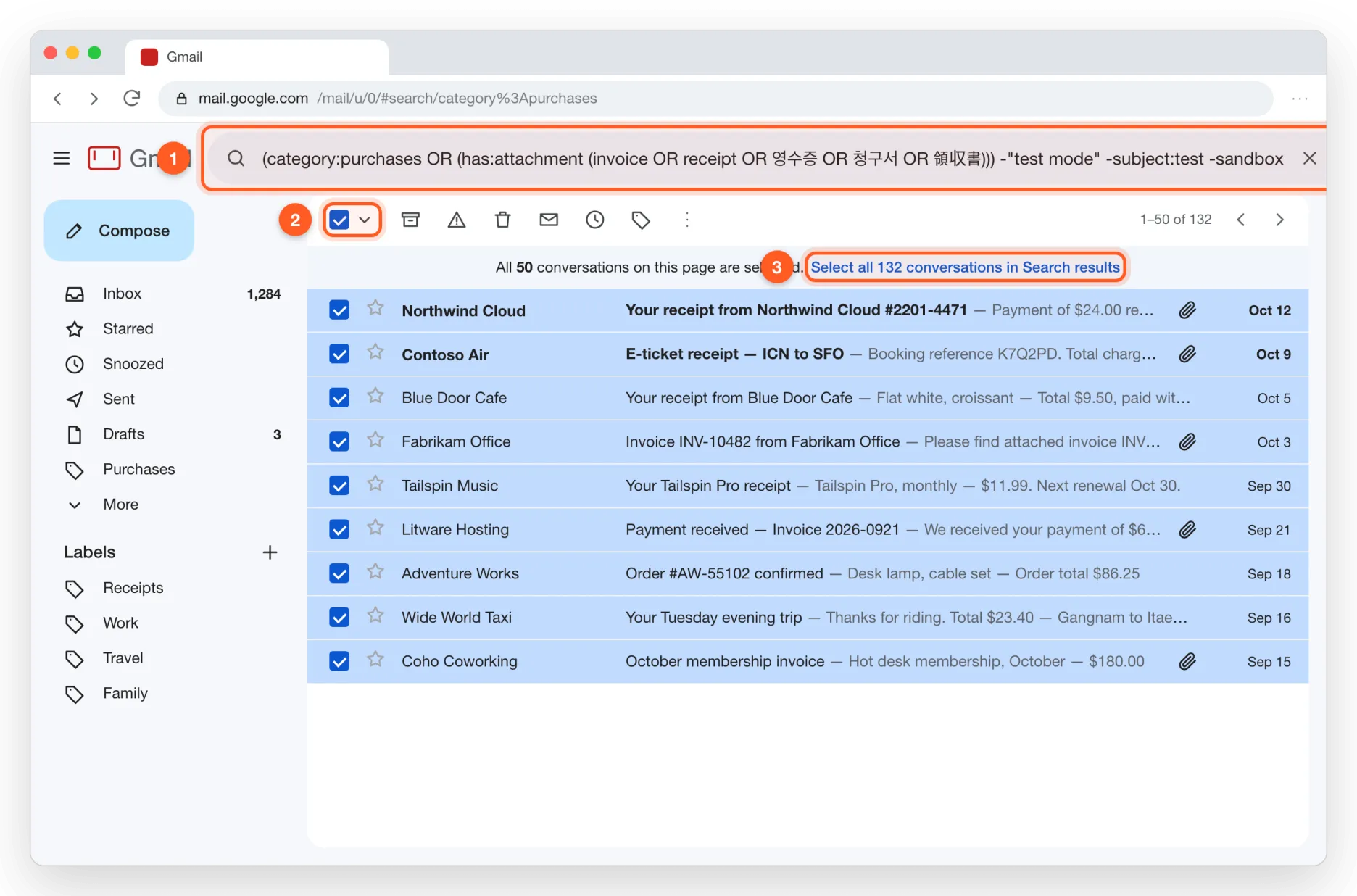
- 2
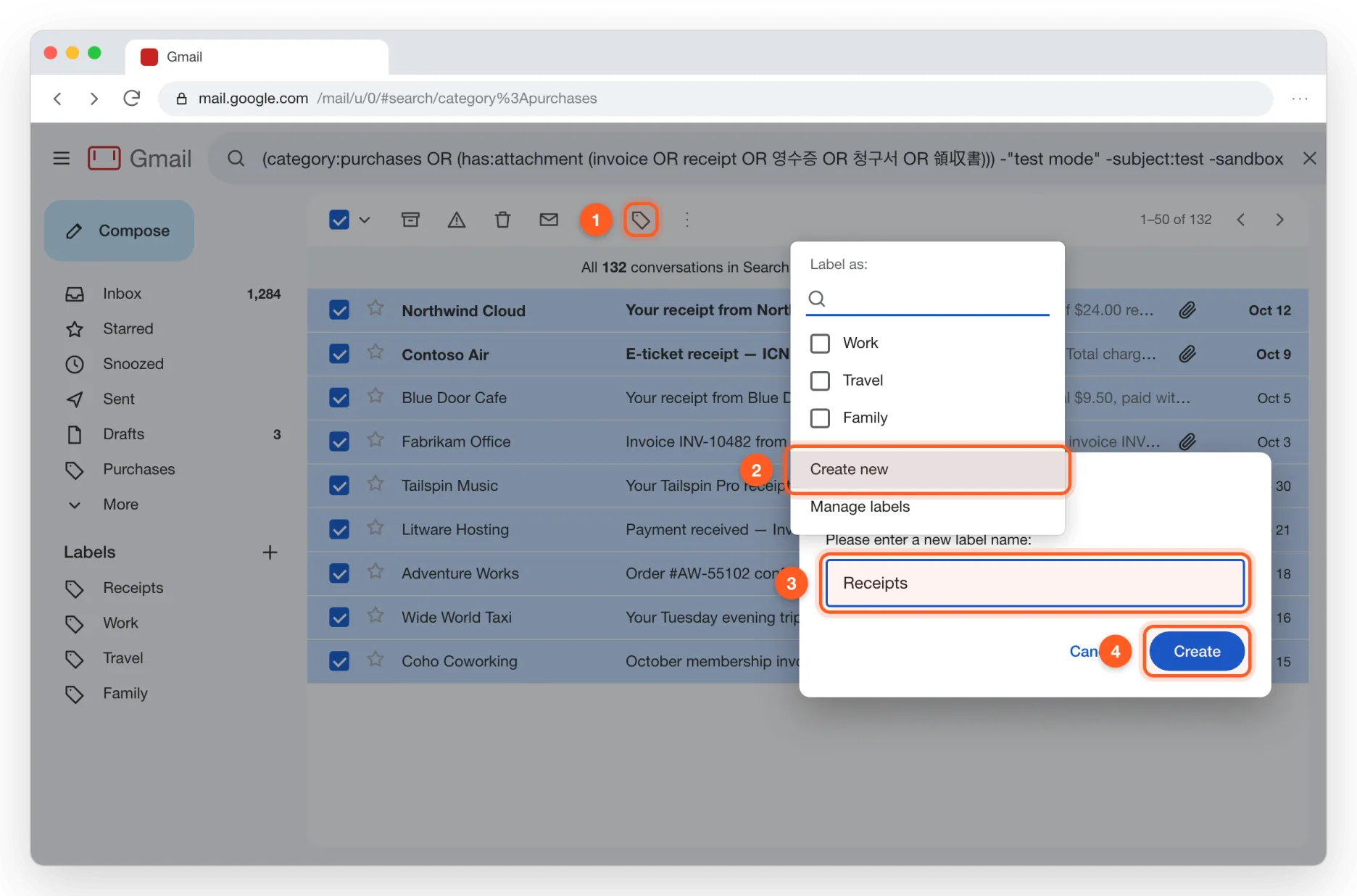
Label them “Receipts”
Click the label icon, choose Create new, name it Receipts and click Create. Every selected email gets the label.
- 3
Choose Mail in Google Takeout
Open Google Takeout, click Deselect all and tick Mail only. Then click “All Mail data included”.
takeout.google.com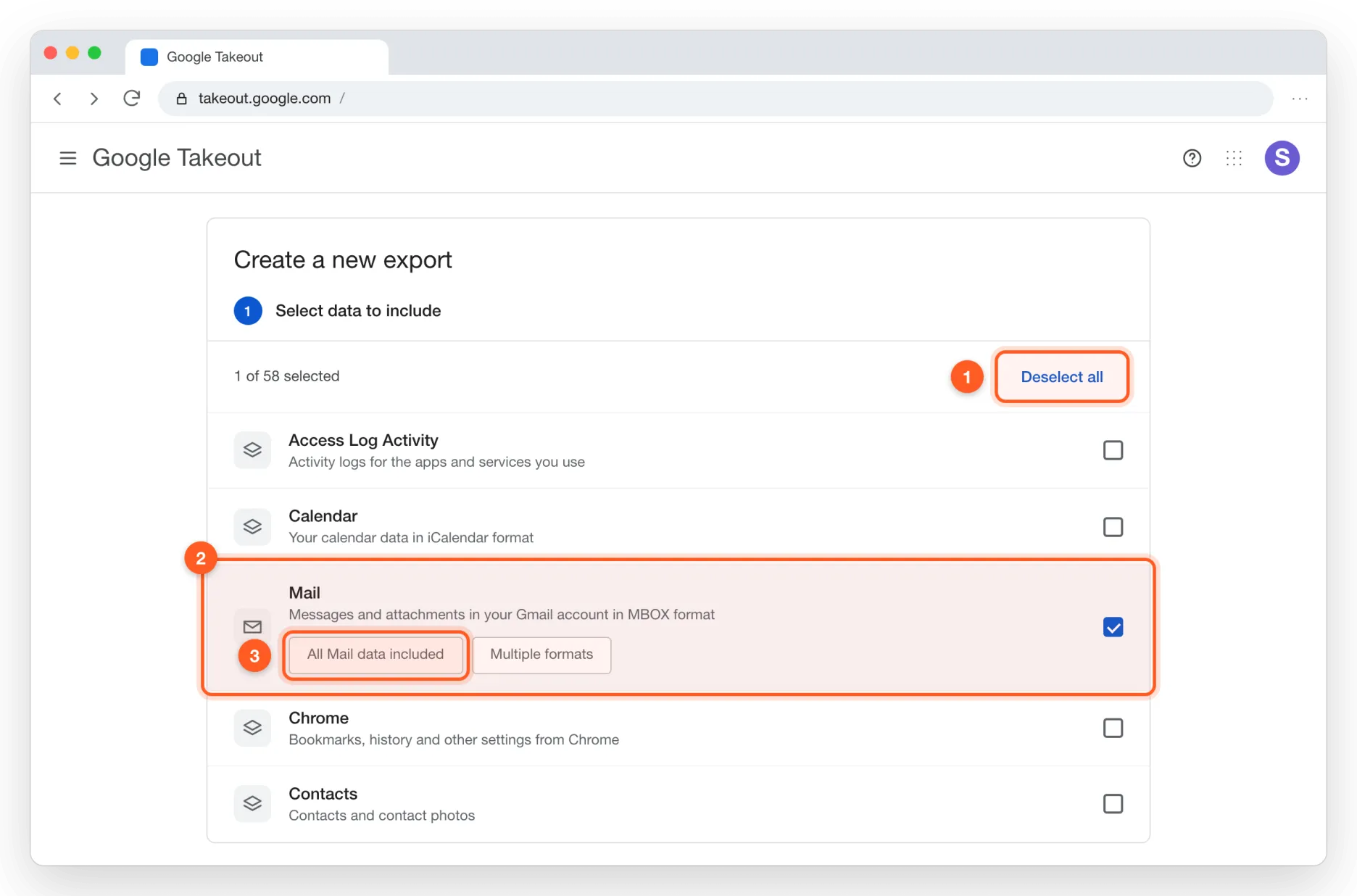
- 4
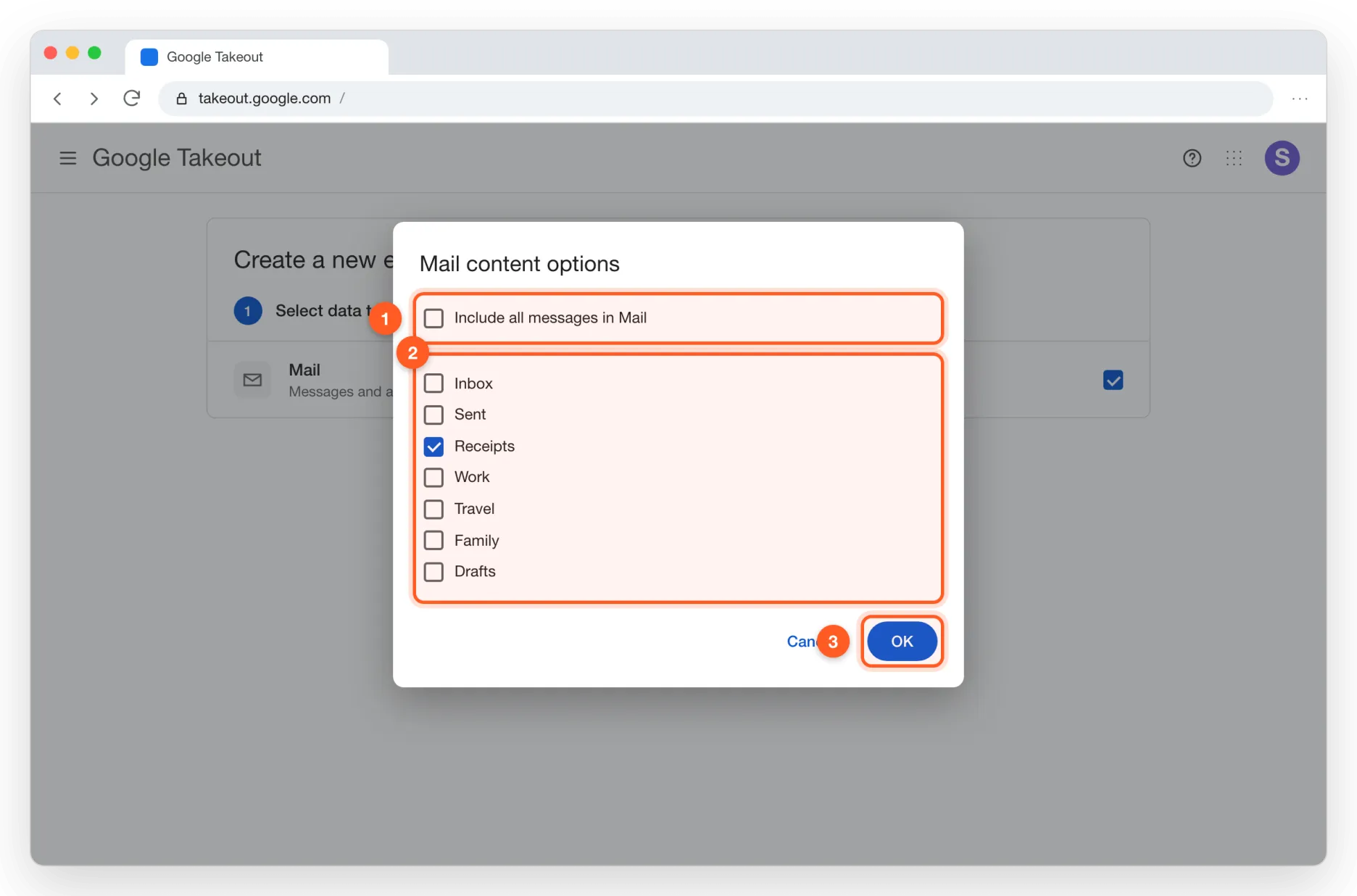
Keep only the Receipts label
Untick “Include all messages in Mail”, tick Receipts, click OK, then Next step.
- 5
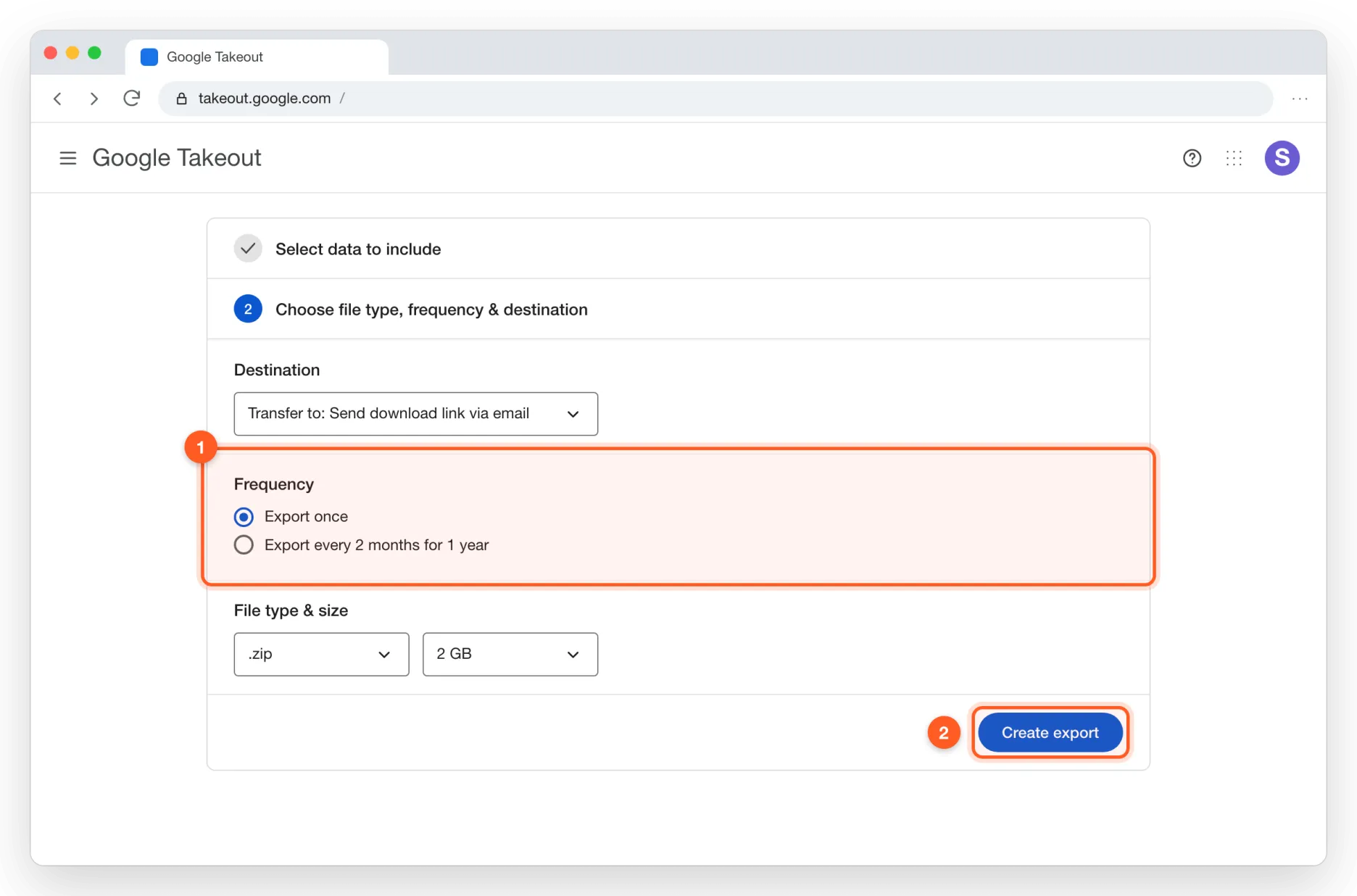
Export once, as a ZIP
Leave Export once and .zip as they are and click Create export. A few hundred receipts usually take a few minutes.
- 6
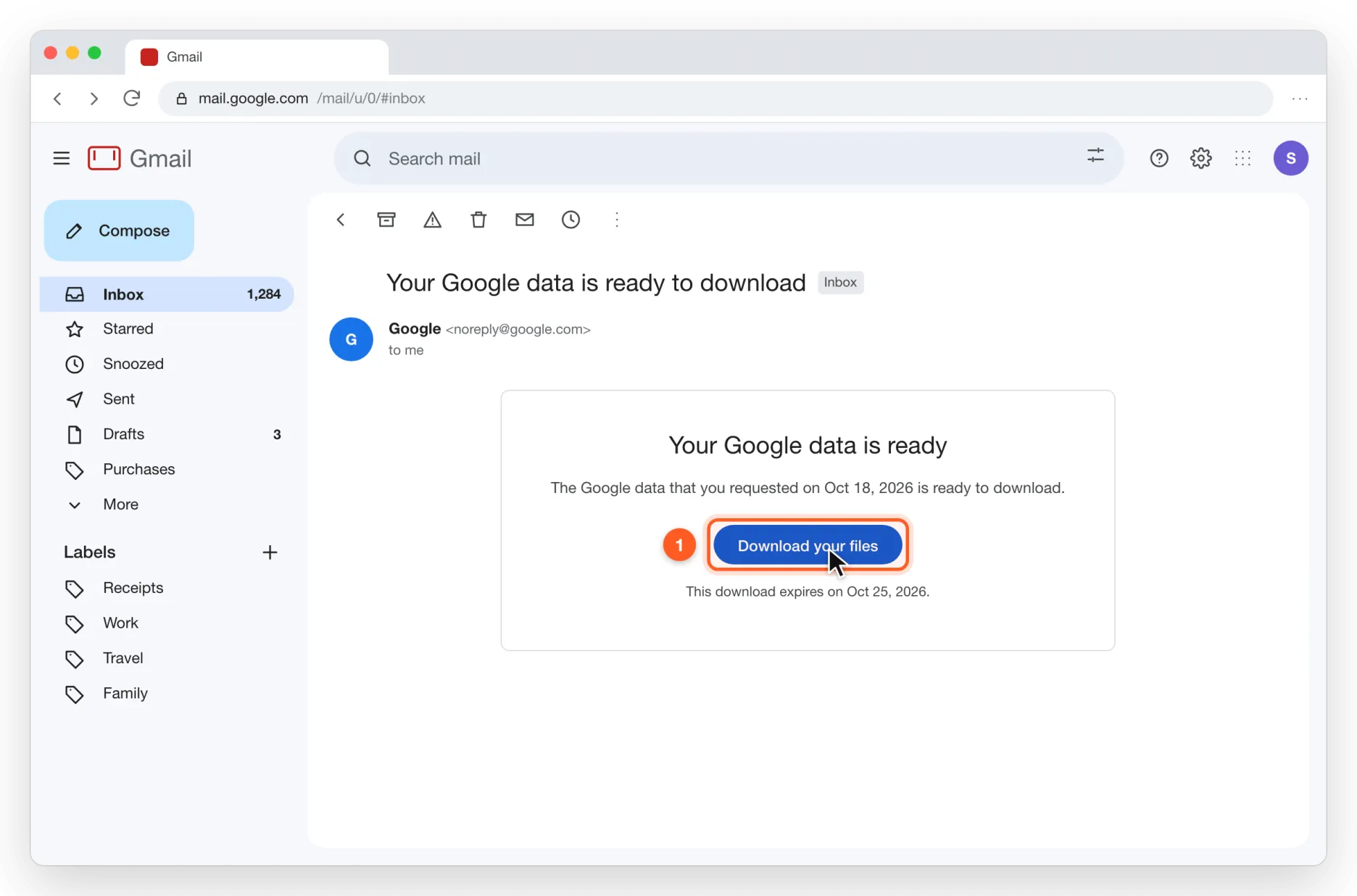
Download from the email
Google emails you when the export is ready. Click Download your files to save the ZIP. The link expires after a week.
- 7
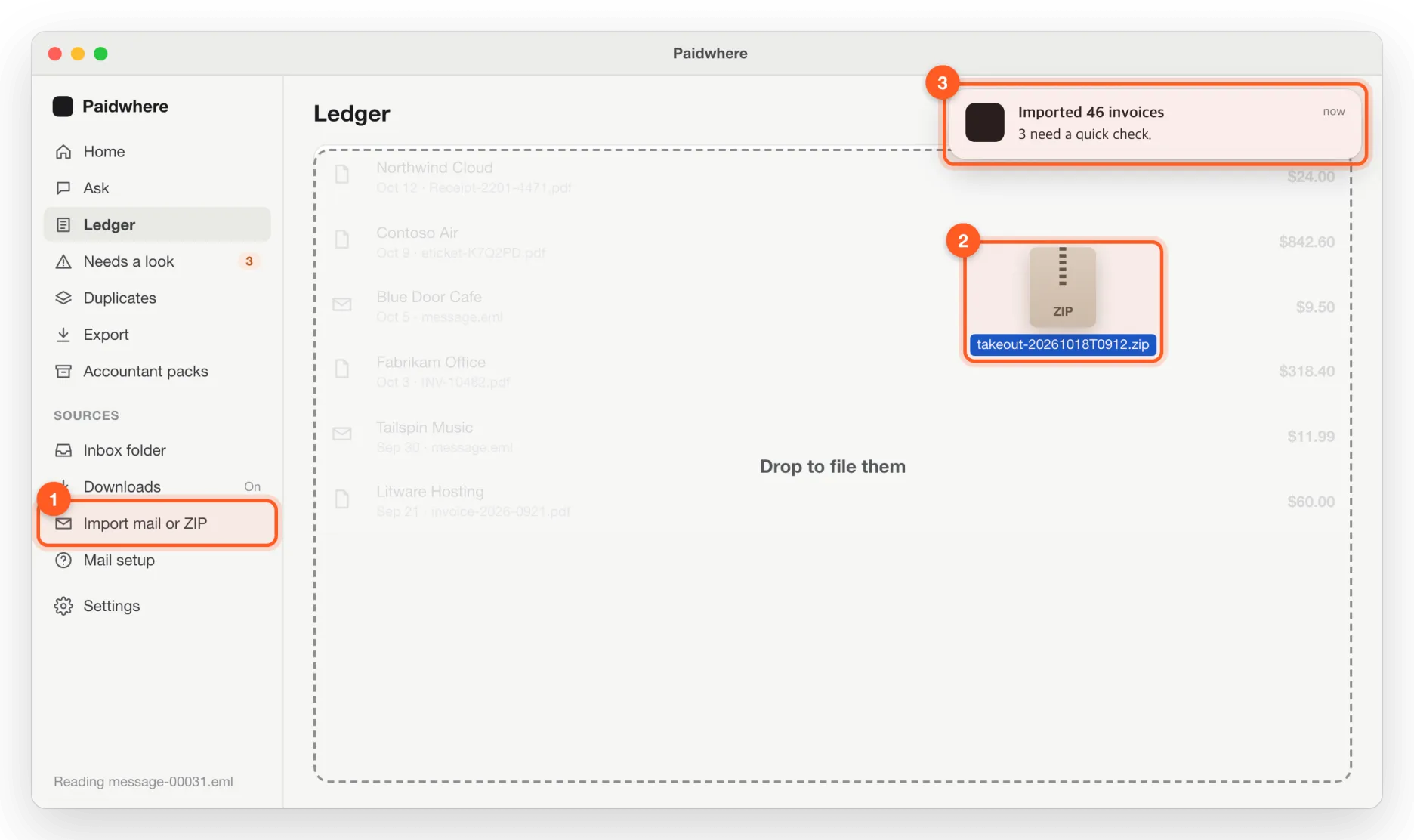
Hand the ZIP to Paidwhere
With Downloads watching on, it is filed as soon as it lands. Otherwise click Import mail or ZIP in the sidebar, or drop it on the window. Emails that are not receipts are skipped, and you get one notification when it is done.
New receipts, automatically
Coming soonA Gmail filter forwards only the emails that look like receipts to your Paidwhere address. Nothing else leaves your mailbox.
Your Paidwhere forwarding address opens with the public release. Until then, use “Mail you already have”: it works today.
- 1
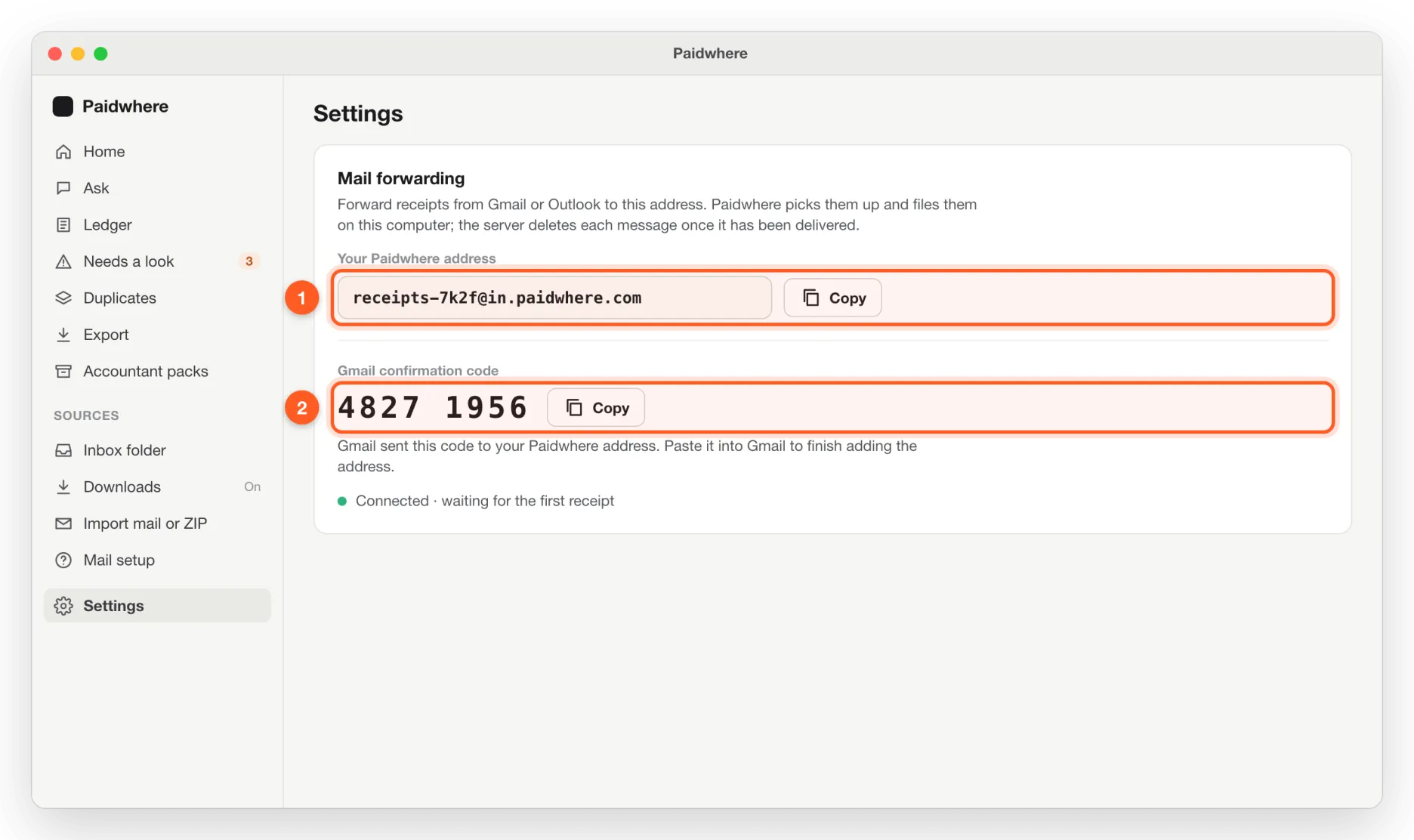
Copy your Paidwhere address
In Paidwhere, open Settings › Mail forwarding and copy your address.
- 2
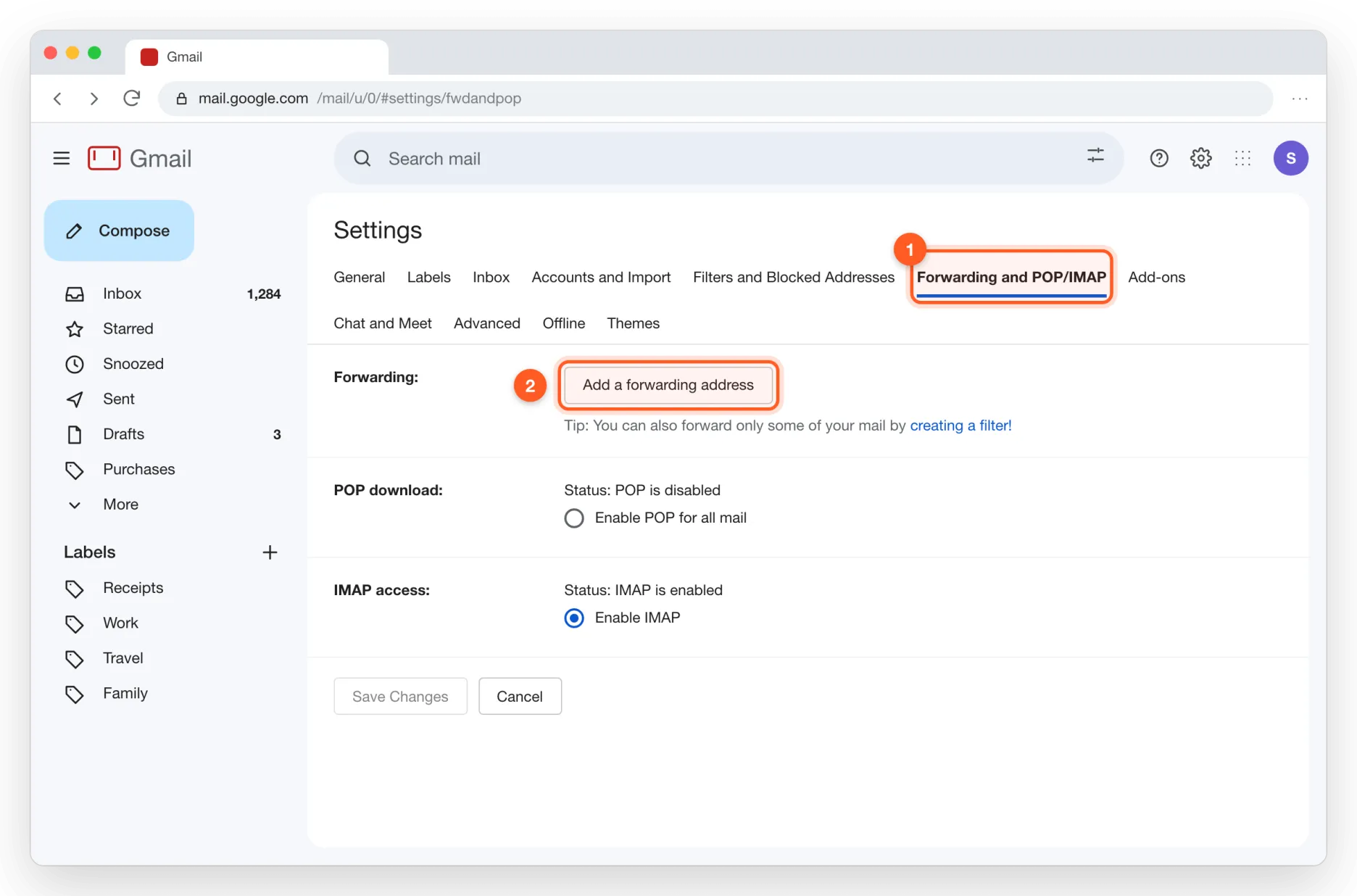
Open Gmail forwarding settings
In Gmail, click the gear, See all settings, then the Forwarding and POP/IMAP tab, and click Add a forwarding address.
- 3
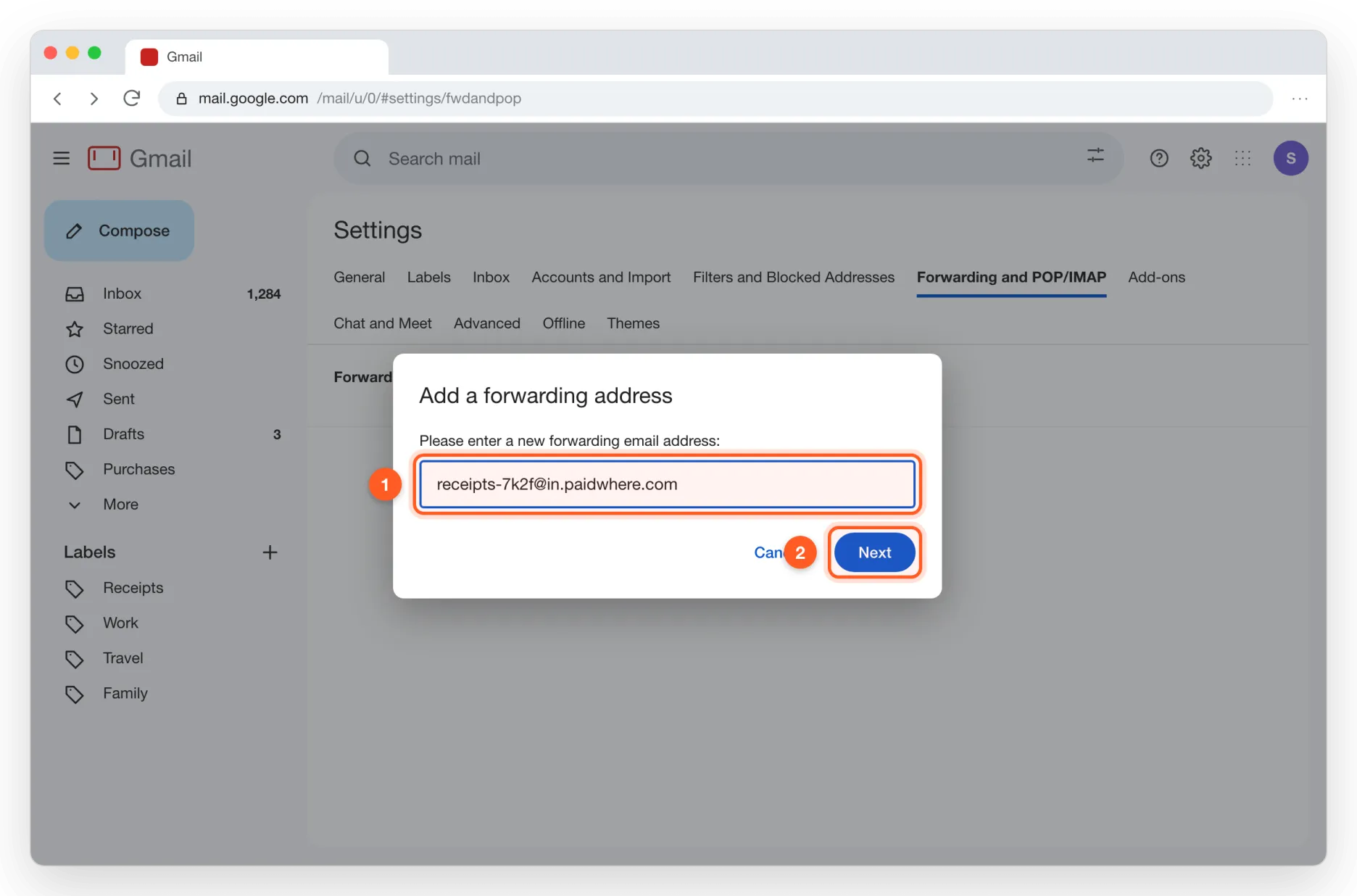
Paste the address
Paste your Paidwhere address and click Next, then Proceed.
- 4
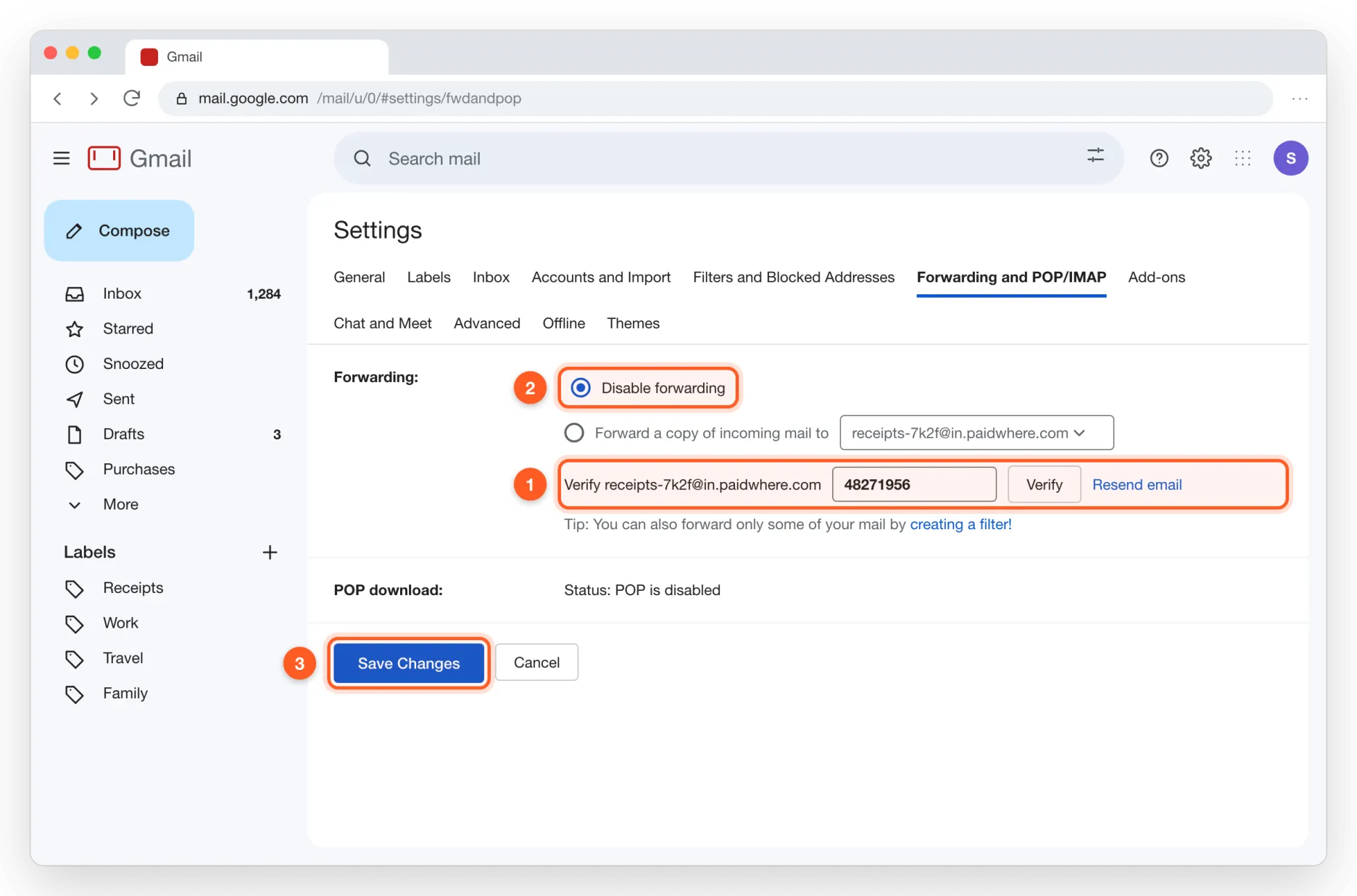
Enter the confirmation code
The code Gmail sends shows up in Paidwhere right away. Paste it and click Verify. Keep “Disable forwarding” selected so only the filter below forwards mail.
- 5
Create a receipts filter
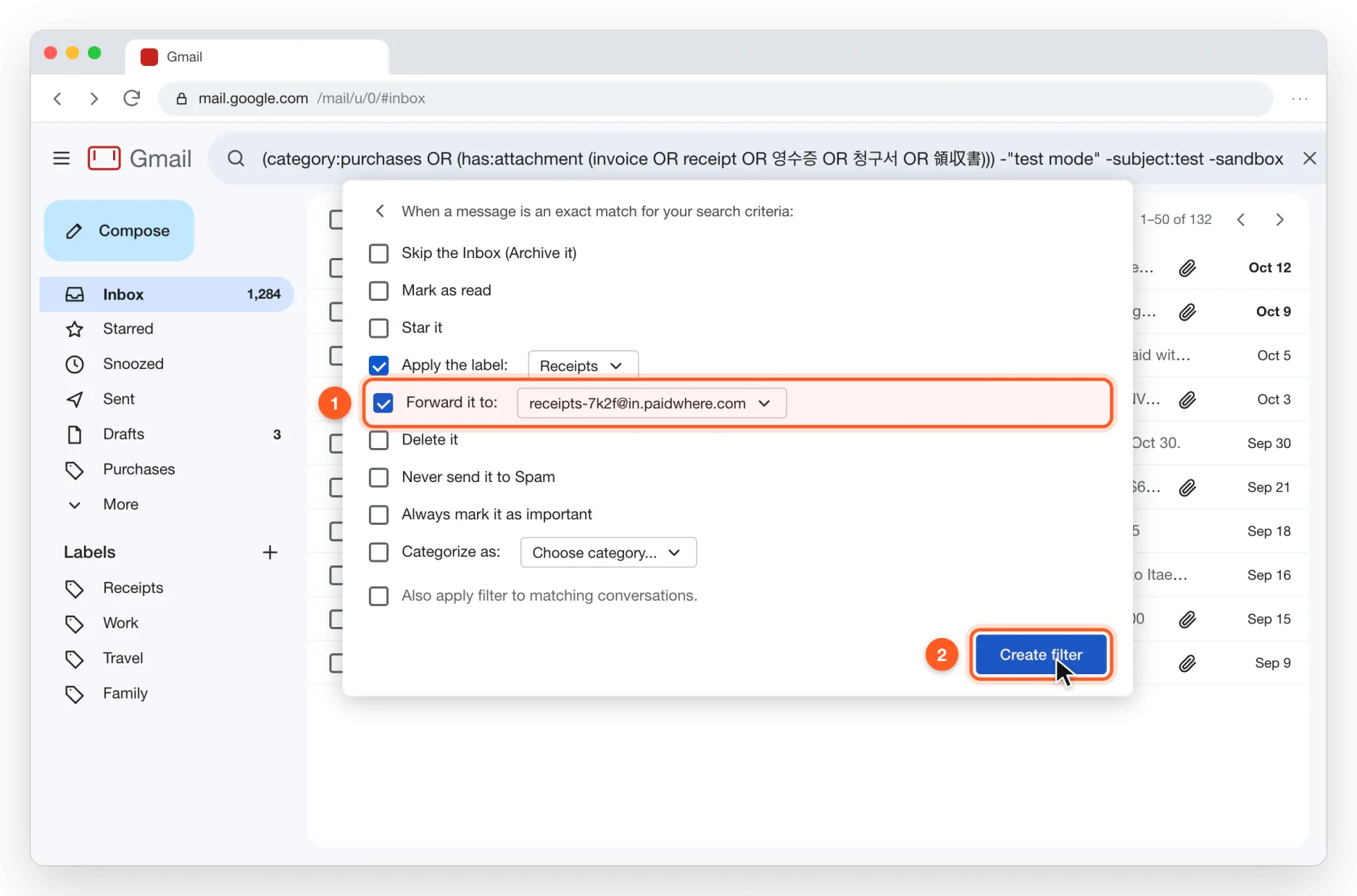
Click the options icon in the search box, paste this into “Has the words” and click Create filter.
(category:purchases OR (has:attachment (invoice OR receipt OR 영수증 OR 청구서 OR 領収書))) -"test mode" -subject:test -sandbox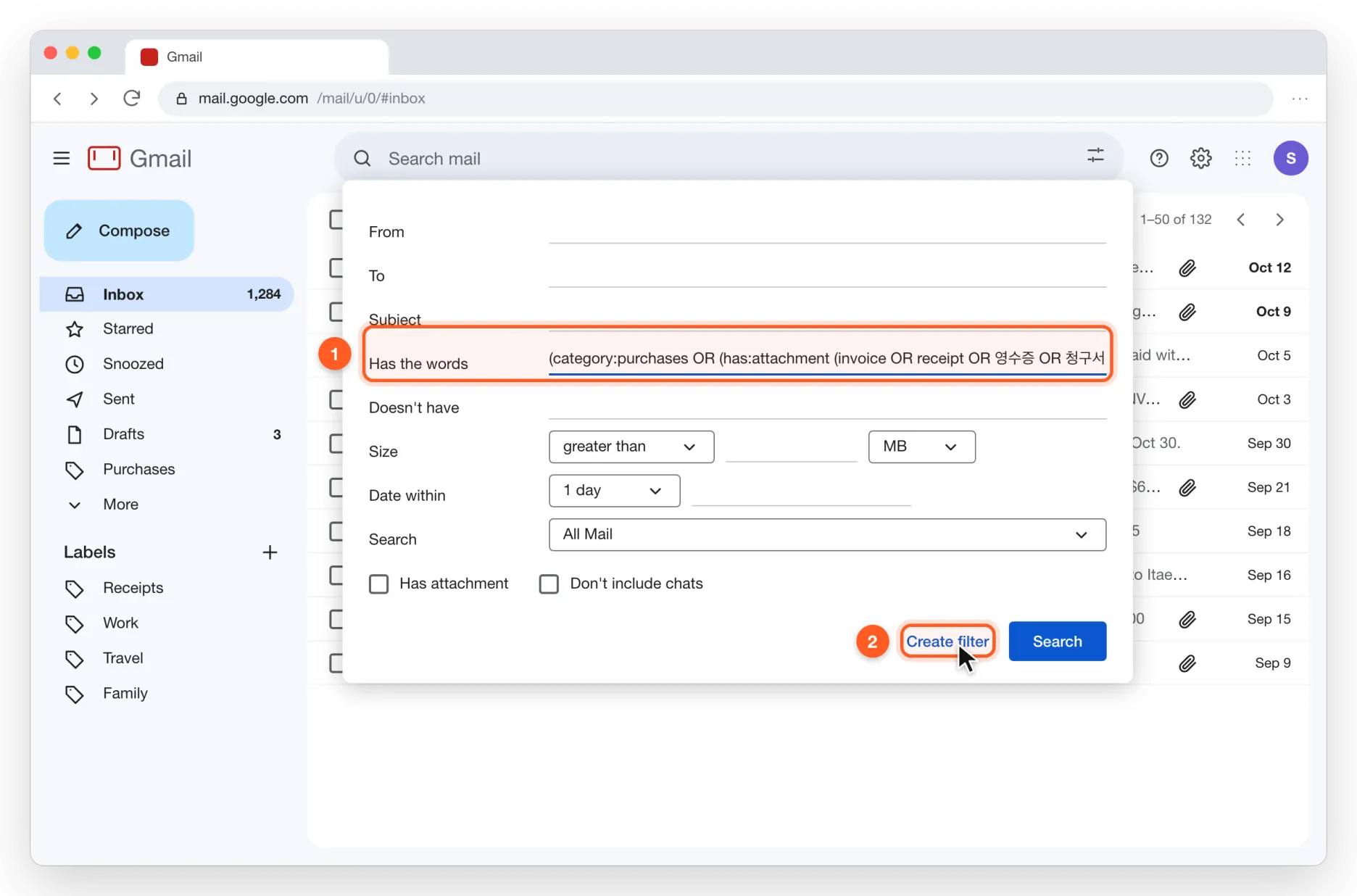
- 6
Forward matches to Paidwhere
Tick “Forward it to”, pick your Paidwhere address and click Create filter. New receipts reach your ledger within minutes.
Outlook
Mail you already have
Outlook on the web has no bulk export, so you save the emails as files.
A few emails
- 1
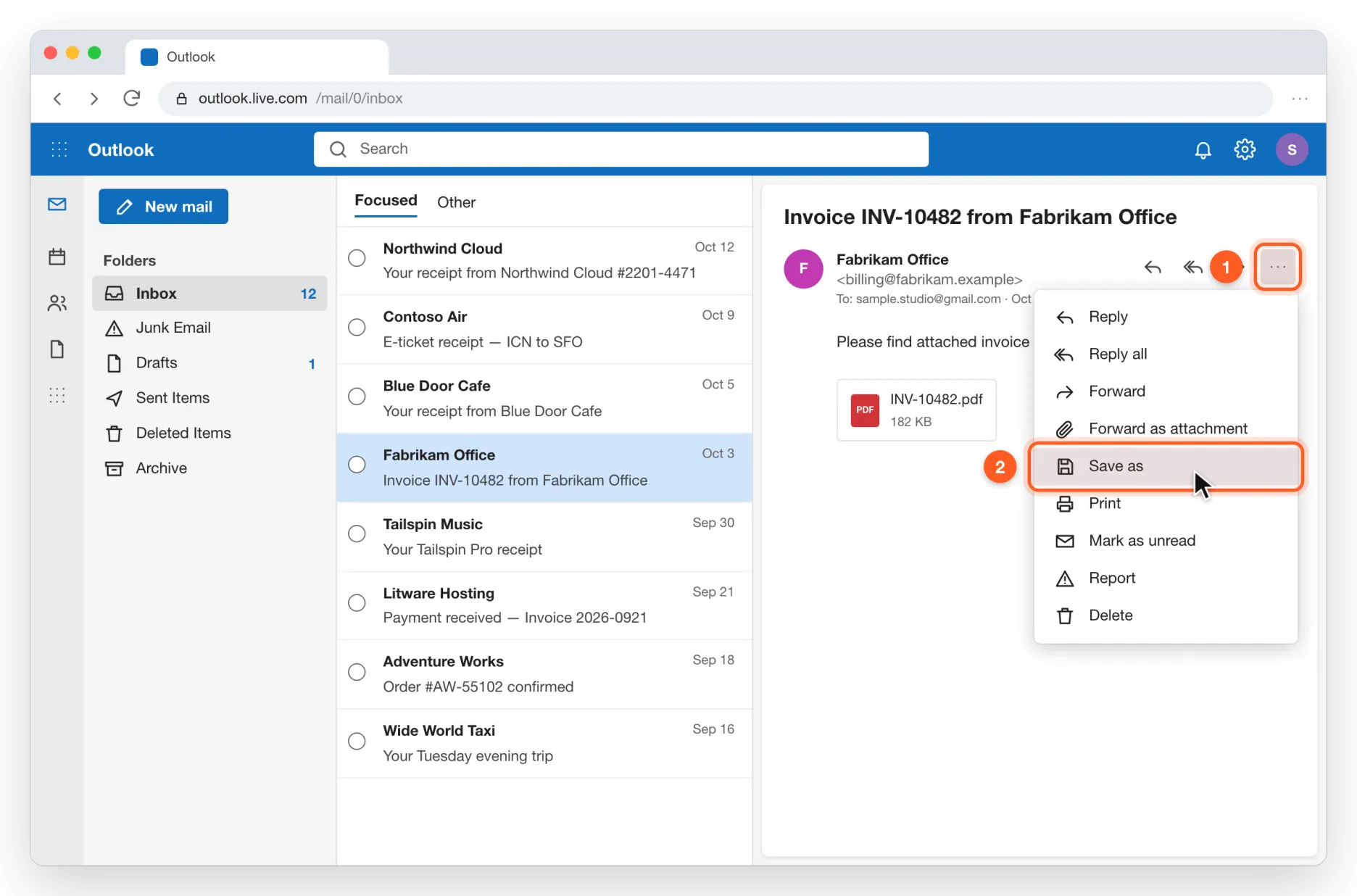
Save an email as a file
Open the receipt, click … and choose Save as. You get an .eml file; drop it on the Paidwhere window.
Many emails
- 2
Find them and forward as attachments
Search for the words below, select all results, right-click and choose Forward as attachment. Send it to yourself.
invoice OR receipt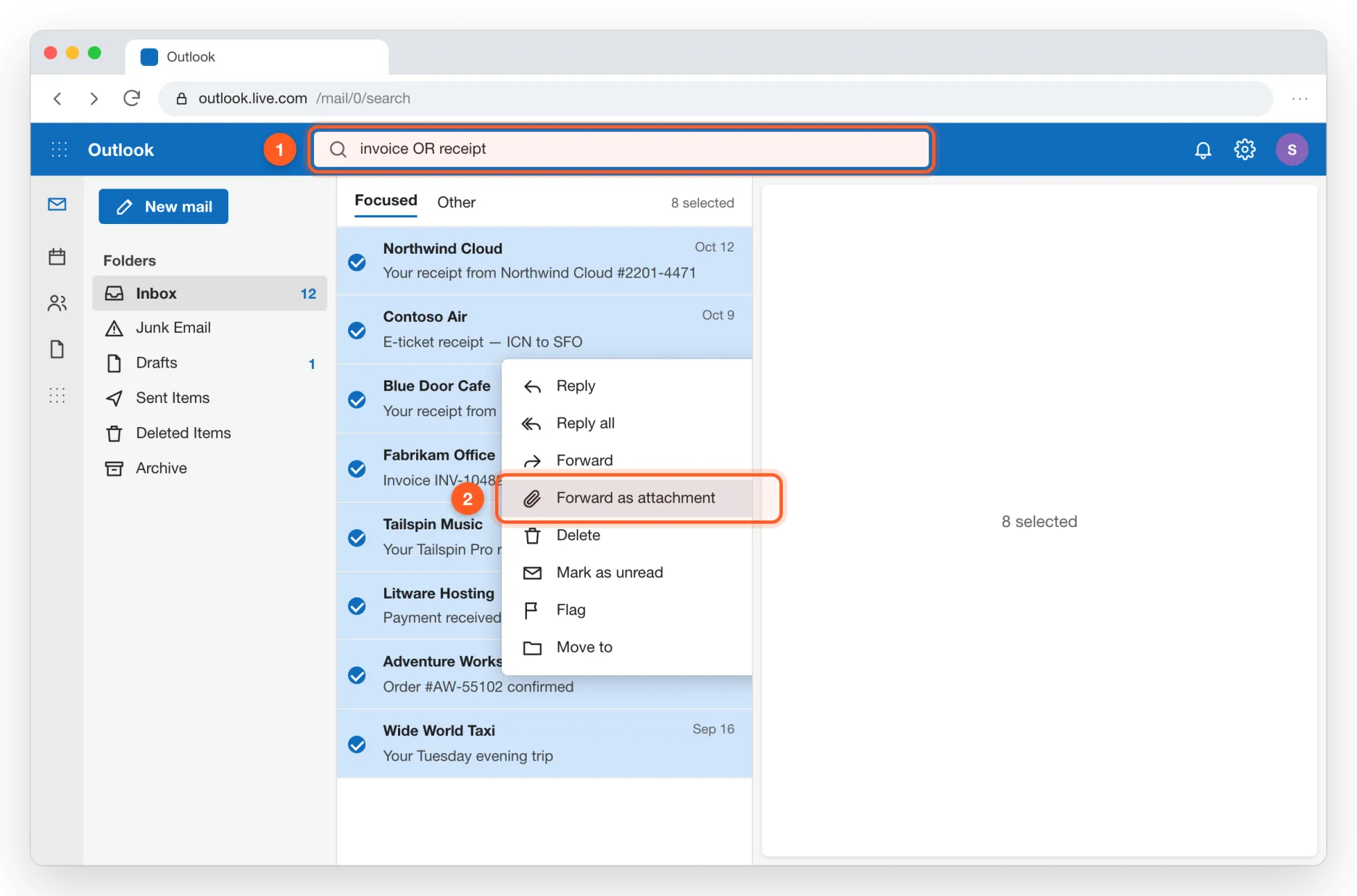
- 3
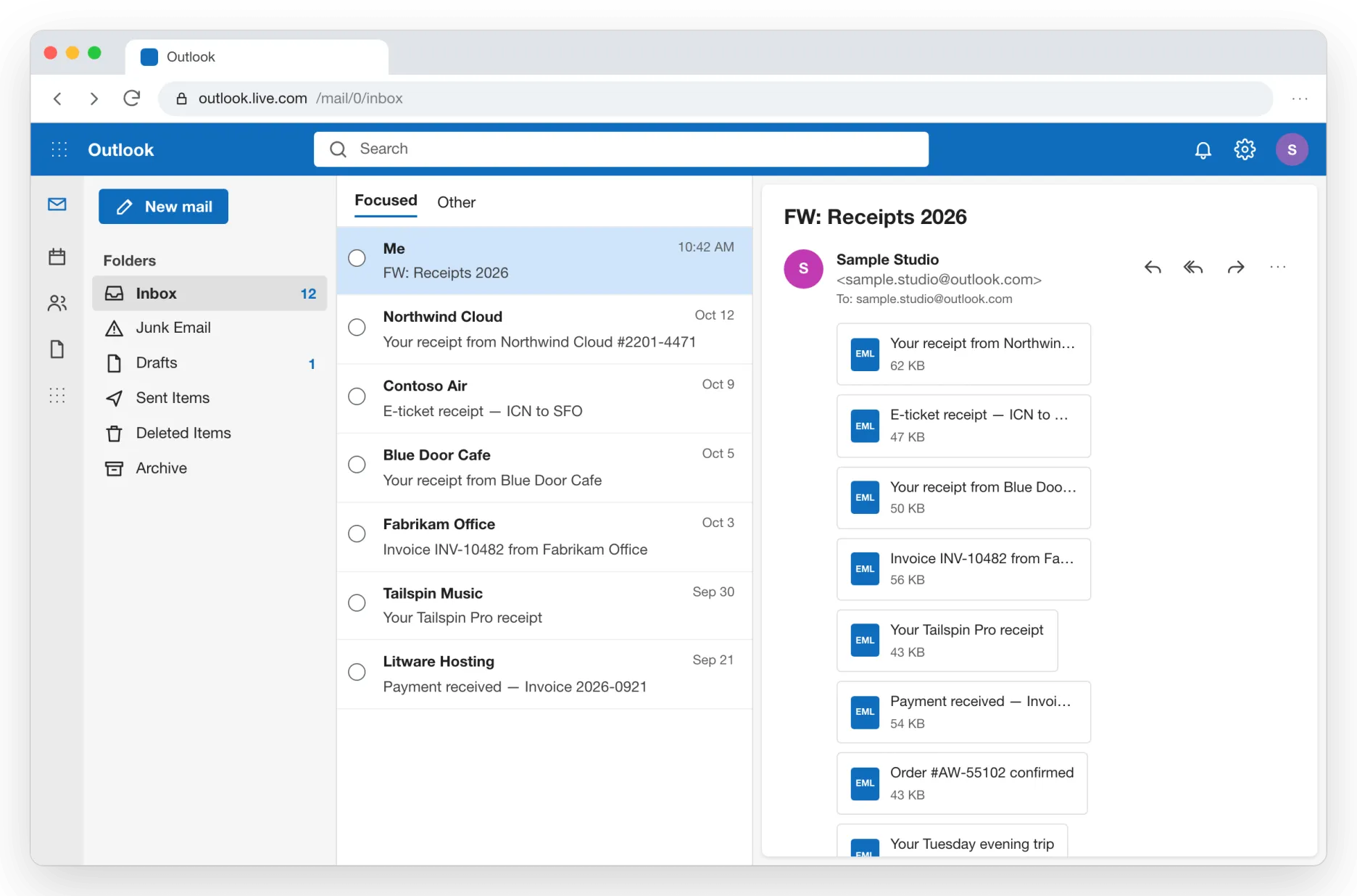
Download them in one go
Open the email you sent yourself and click Download all. You get one ZIP; give it to Paidwhere and every email inside is read separately.
New receipts, automatically
Coming soonAn Outlook rule forwards only receipt emails to your Paidwhere address.
Your Paidwhere forwarding address opens with the public release. Until then, use “Mail you already have”: it works today.
- 1
Copy your Paidwhere address
In Paidwhere, open Settings › Mail forwarding and copy your address.
- 2
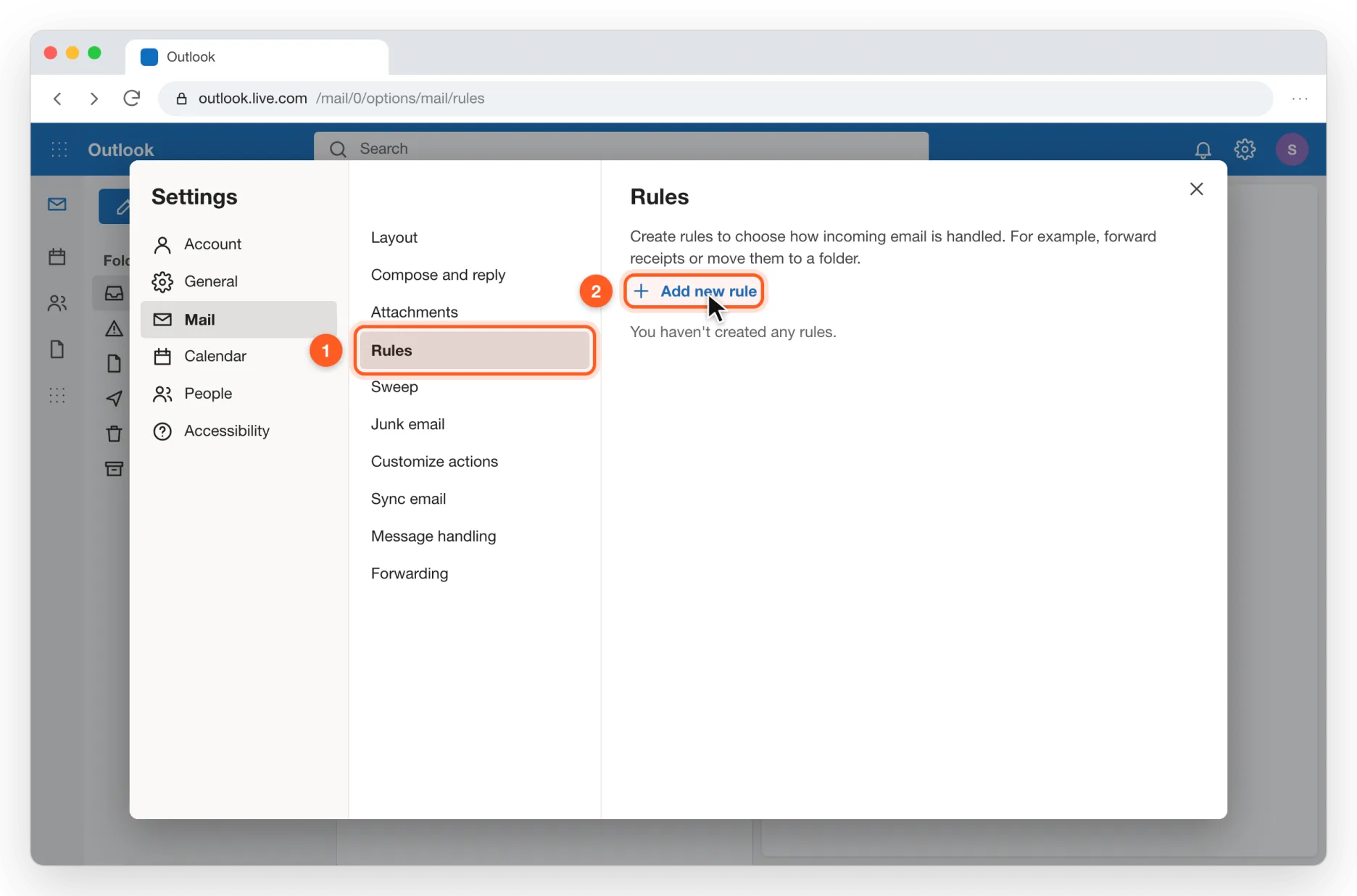
Open Rules
Click the gear, then Mail › Rules, and click Add new rule.
- 3
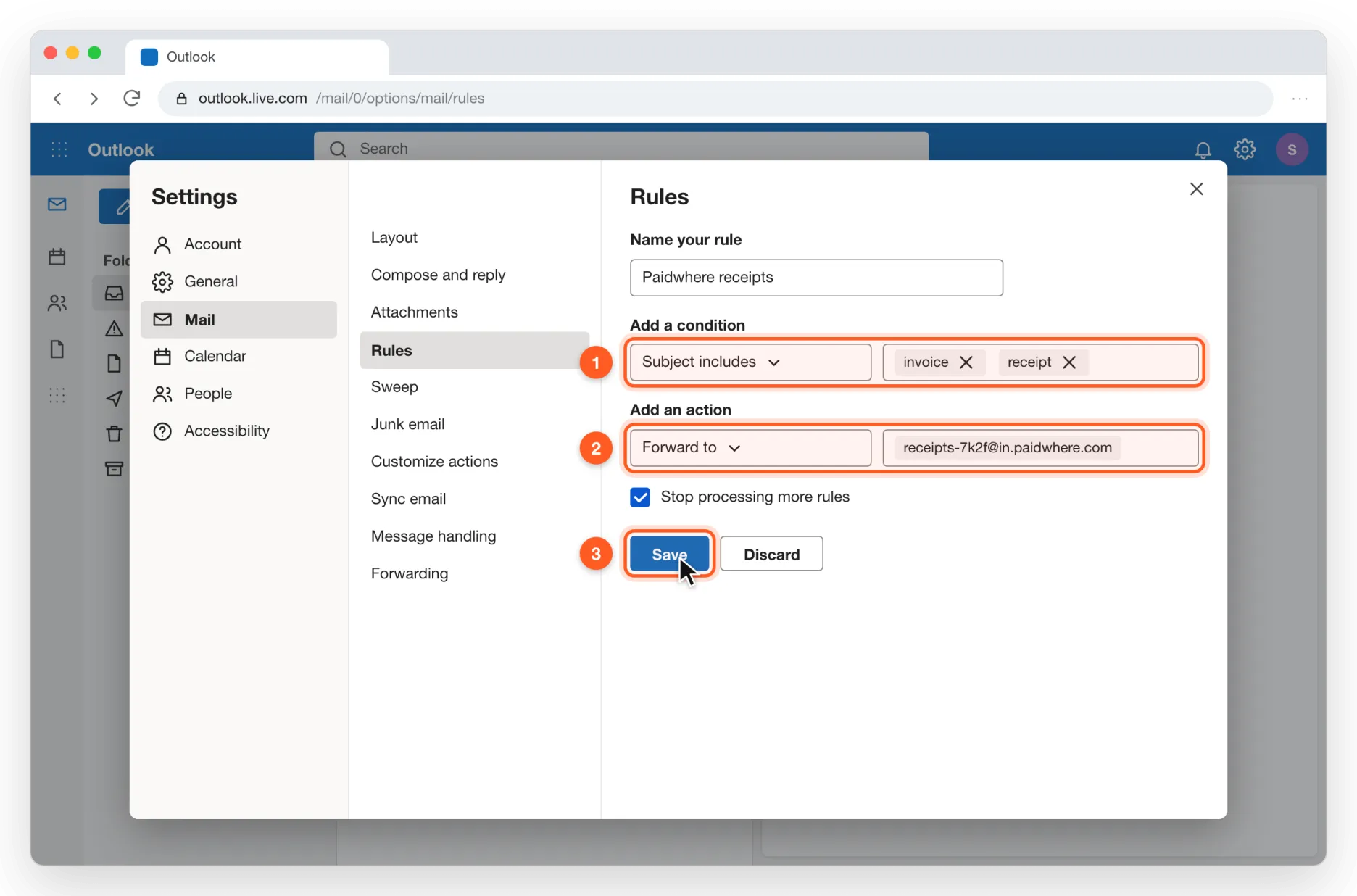
Set the condition and the address
Condition: Subject includes invoice, receipt. Action: Forward to your Paidwhere address. Click Save. Some accounts have automatic forwarding turned off by Microsoft; if so, use “Many emails” above.
Other mail
Any other mail app
Paidwhere reads saved emails (.eml), mailbox exports (.mbox) and ZIPs of either.
- 1
Apple Mail (Mac)
Select the emails and drag them into the Paidwhere Inbox folder. For a whole mailbox, choose Mailbox › Export Mailbox and drop the exported .mbox on the Paidwhere window.
- 2
Thunderbird
Select the emails and drag them to your desktop to get .eml files, then drop those on Paidwhere.
- 3
Yahoo, iCloud, Proton and others
Save the emails as .eml, or download a folder as .mbox or ZIP, and drop it on Paidwhere.
Paidwhere never asks for your email password and never signs in to your mailbox. You hand it files, or forward only the messages you choose.
Screens show sample data and may look slightly different from yours.